
Appearance
Child themes in Laravel: change a theme, keep its updates
Every site built on a ready-made theme reaches the same moment: the theme is almost right. The footer needs one more line, the header another colour, the post page a different layout. There are two quick ways to get there, and both cost you later.
Edit the theme in place, and the next composer update overwrites your changes — or you stop updating, and the theme's fixes for security, speed and new browsers never reach you. Fork it, and you own every line of it from then on, merging each upstream release by hand.
WordPress solved this years ago with child themes, and most WordPress developers reach for one without thinking. kitloom now has them too, built the same way: a child theme holds only what it changes and takes everything else from its parent — including the parent's updates.
What a child theme is
A child theme is a theme with a parent. Where WordPress reads Template: twentytwentyfive from a child's style.css, kitloom reads the parent's name from the child's composer.json:
json
{
    "extra": {
        "kitloom": {
            "theme": {
                "parent": "Journal"
            }
        }
    }
}
A folder themes/Inkwell/ with that file and one changed template is a complete child theme. It needs no service provider and no package.
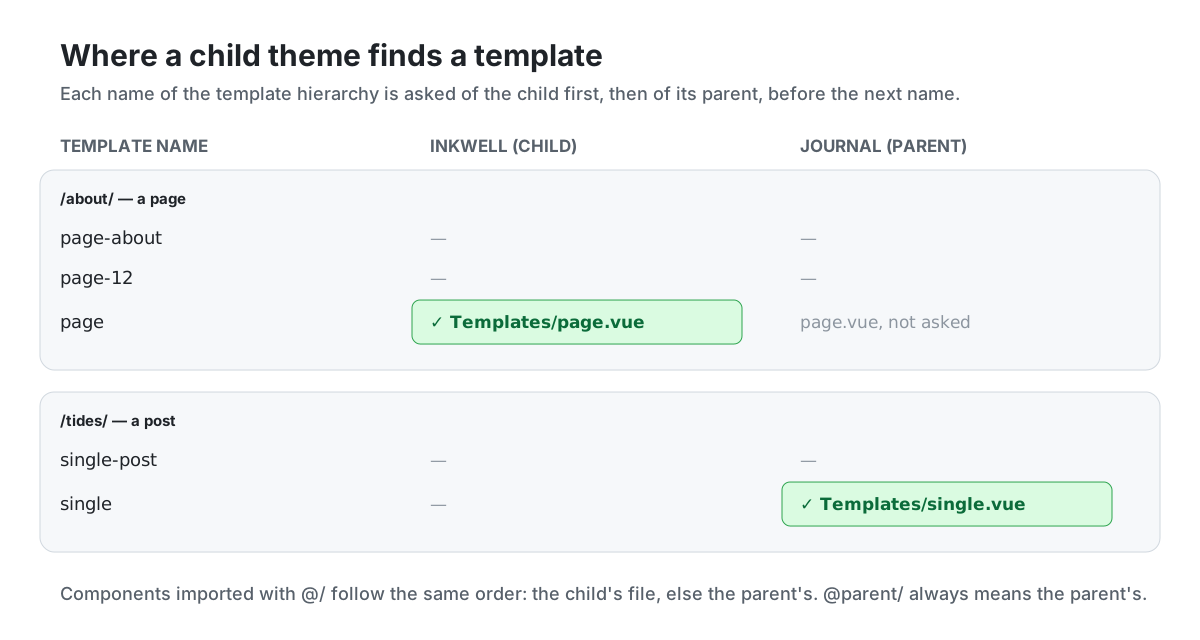
When a page is drawn, kitloom walks the WordPress template hierarchy as usual, but asks for each template name twice: first in the child, then in the parent, before it moves on to the next name. The same order applies to Blade views and to the Vue or React components a template imports.
First, check whether you need one at all
Many of the changes people make child themes for are not code. The accent colour, the logo, the line under the footer, a sidebar on the left instead of the right: in kitloom, a theme declares these as settings, and the site's owner changes them on Appearance → Customize, beside a live preview of the site.
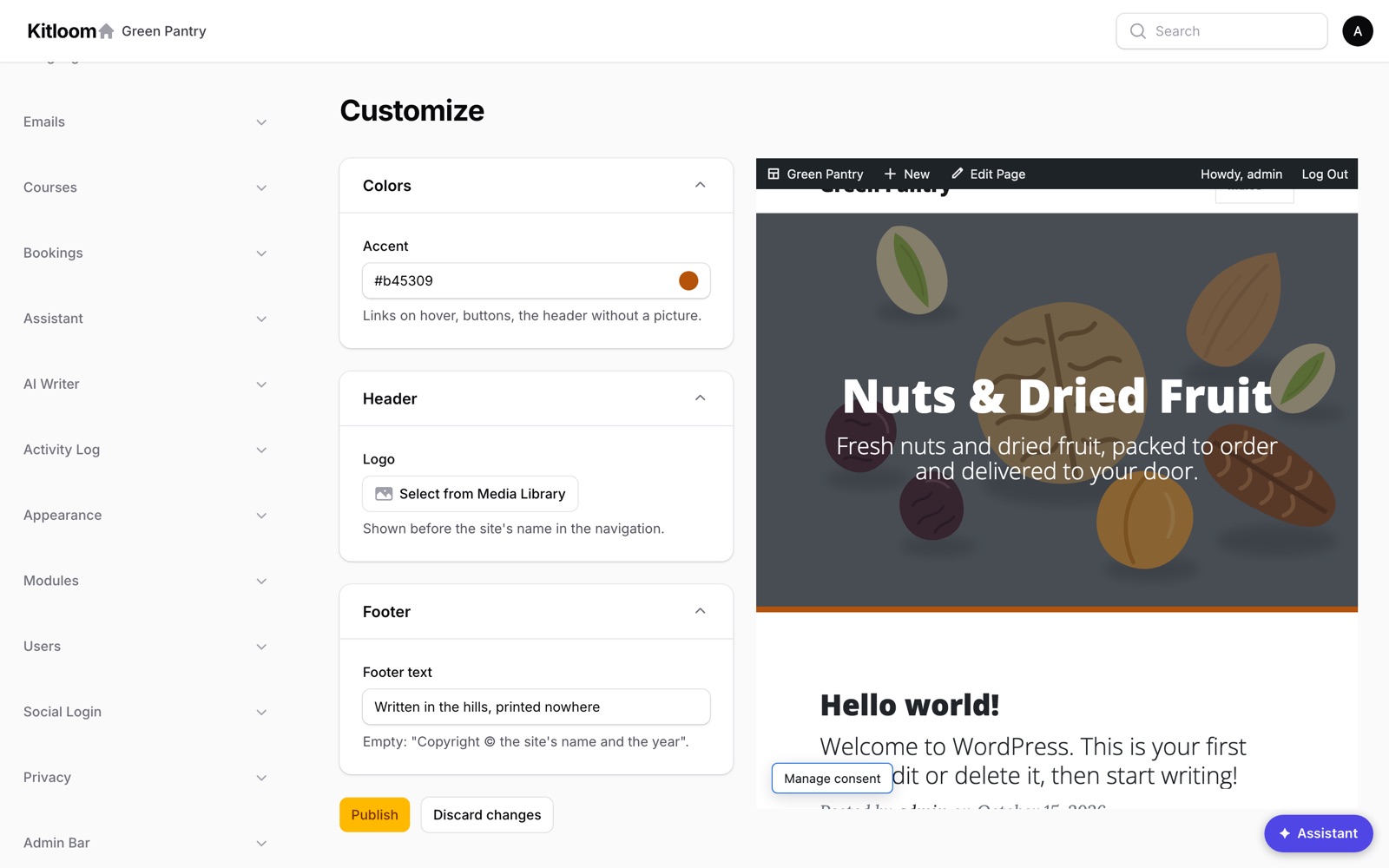
The preview is a draft only you can see, for an hour, in any tab. It is never cached and never indexed. Publish makes it live for everyone. If that covers what you wanted, stop here: there is no child theme to maintain.
Make a child theme in one command
When you do need code, the theme generator writes the child for you:
bash
php artisan kitloom:make-theme Inkwell --parent=Journaltext
themes/Inkwell/
├── composer.json          the parent's name, the child's card on Appearance → Themes
├── README.md              how to override, and every file of Journal you may override
└── resources/
    └── style.css          loaded after Journal's styles
To start from one of the parent's files, copy it over as you make the child, or later:
bash
php artisan kitloom:make-theme Inkwell --parent=Journal --copy=Components/Masthead.vue,Templates/pageThe command copies only the files you name, and never over one the child already has. A child meant for several sites can be a Composer package instead (--package --vendor=acme), with its own service provider and test.
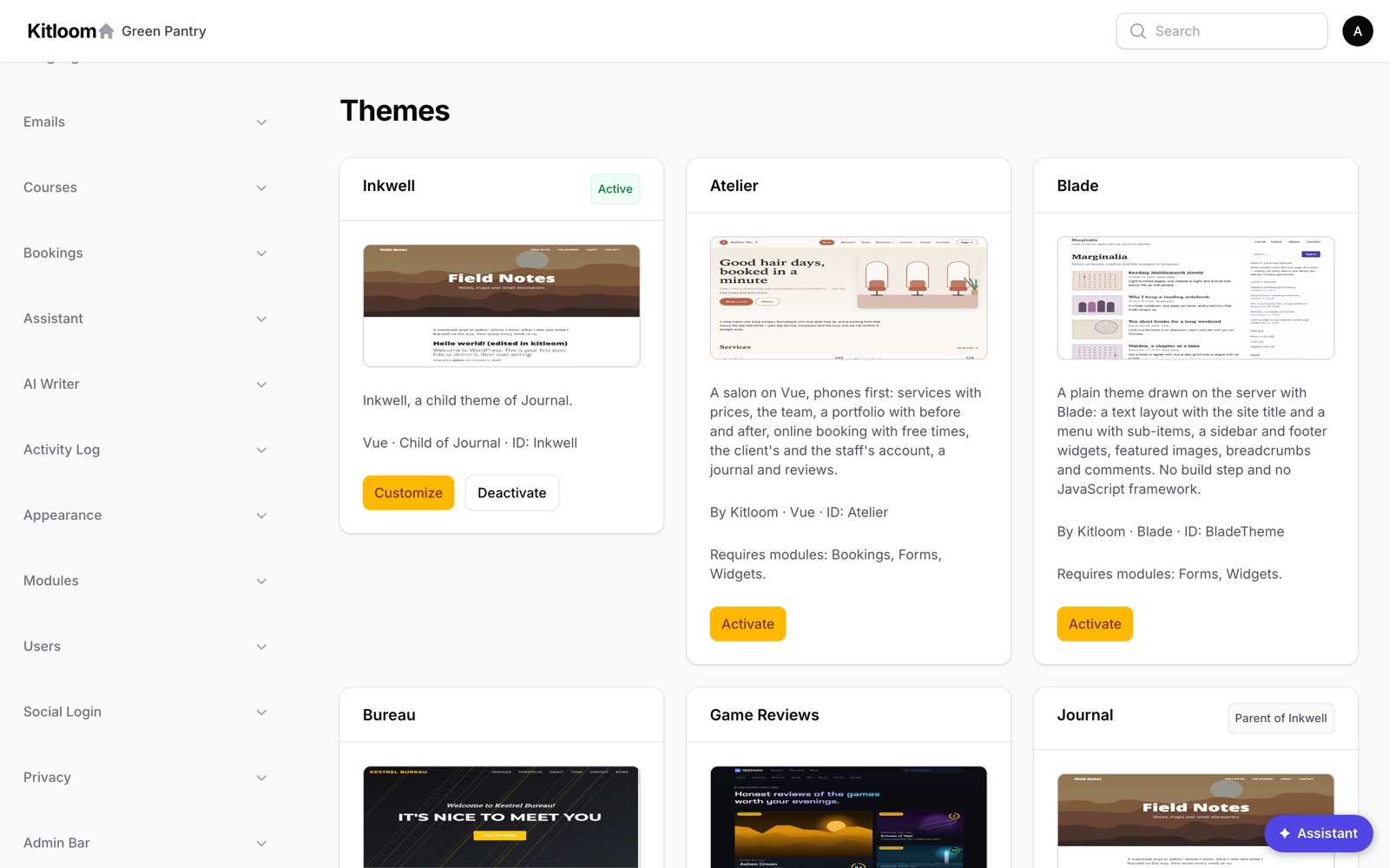
Appearance → Themes then shows both themes, and tells you which is which:
Override a template, a layout or a component
A Blade theme. Put a view of the same path in the child, and every page uses it — also pages drawn by the parent's own templates. To wrap the parent's view instead of copying it, name it with parent:::
blade
{{-- themes/Ledger/resources/views/layouts/app.blade.php --}}
@extends('parent::layouts.app')
A Vue or React theme. Imports through @/ look in the child first. Put resources/js/Components/Masthead.vue in the child, and every template that imports @/Components/Masthead.vue gets the child's — the parent's templates included. @parent/ always means the parent's file:
vue
<script setup>
import ParentMasthead from '@parent/Components/Masthead.vue';
</script>

<template>
    <ParentMasthead v-bind="$attrs" />
    <p class="masthead-note">Printed in the hills</p>
</template>
The child is built on its own (APP_THEME=Inkwell npx vite build). It has no entry script of its own, so it is built from the parent's entry, with the child's style.css added after the parent's styles.
Just colours and rules. Every bundled theme keeps its colours in CSS variables, so a few lines in resources/style.css go a long way:
css
:root { --accent: #b45309; }

header.masthead { border-bottom: 6px solid var(--accent); }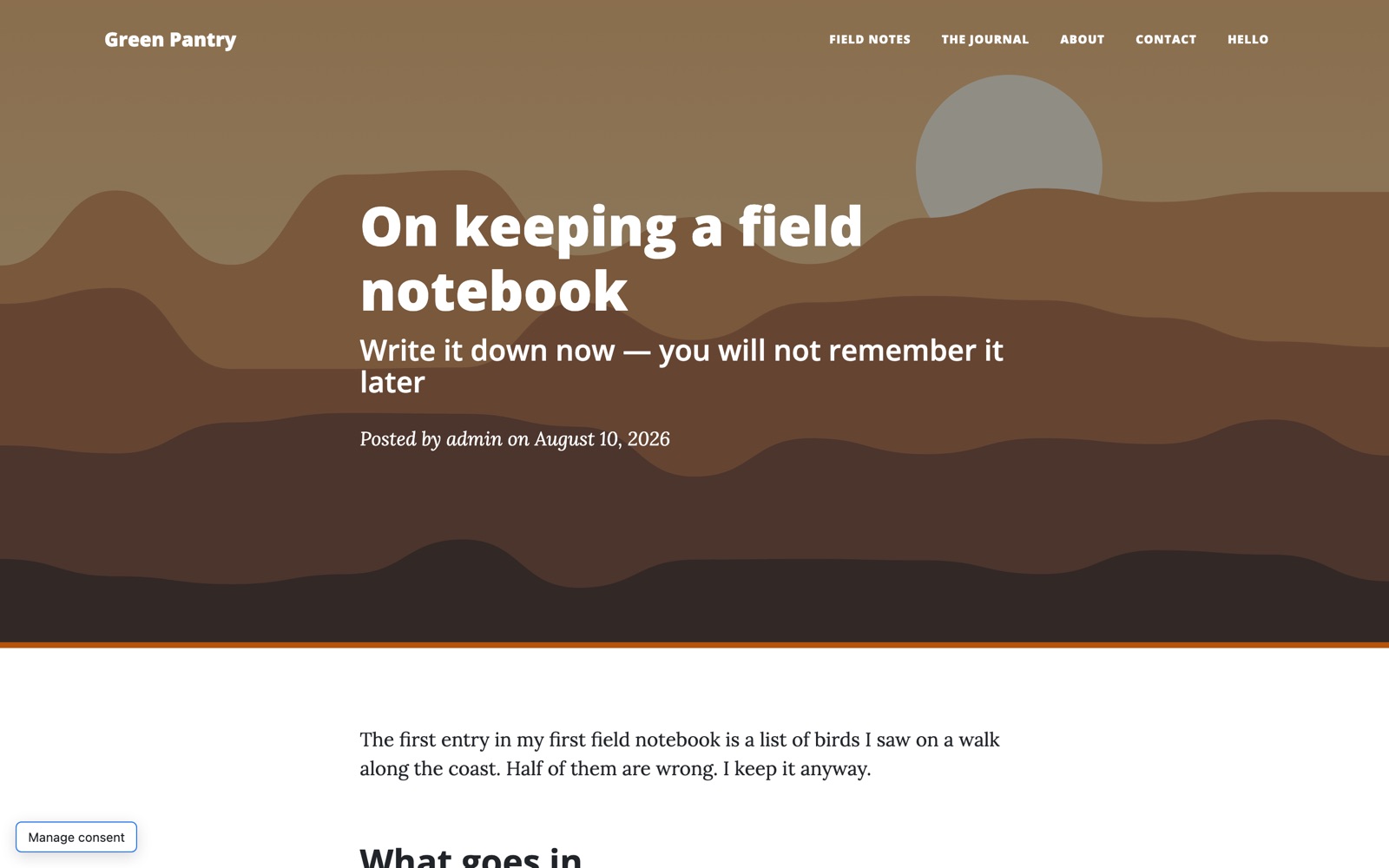
What stays the parent's
While a child is active, its parent counts as active too, just as WordPress loads both themes' functions.php. Nothing the parent sets up is lost:
- its menu locations and widget zones, with the menus and widgets already in them;
- its post types, with their admin screens in Filament and Nova;
- the data its templates read, and its database tables — activating the child runs the parent's migrations first;
- its translations, which the child's
lang/*.jsoncan override line by line; - its settings on Appearance → Customize. The first time the child is activated, it starts from the parent's values, so the colours and logo the owner picked stay. WordPress resets them instead.
And when the parent is updated with composer update, the child gets every change it did not override.
Coming from a WordPress child theme
If you have built WordPress child themes, you already know how this works:
| WordPress | kitloom |
|---|---|
Template: parent in style.css | extra.kitloom.theme.parent in composer.json |
Child's style.css, enqueued after the parent's | resources/style.css, loaded after the parent's styles |
| A template file of the same name overrides the parent's | The same, by the same template hierarchy |
get_template_part() finds the child's part first | @include('partials.x') and @/Components/X.vue find the child's first |
get_template_directory() for the parent's files | parent:: in Blade, @parent/ in Vue and React |
Both functions.php files run | Both service providers boot; the parent's first |
theme_mods_child, starting empty | theme_mods_<child>, starting from the parent's values |
| A grandchild theme is not supported | Not supported either |
Child themes and SEO
A theme switch is the kind of change that worries anyone responsible for search traffic. Moving from a parent theme to its child is about as safe as such a change gets, and the reasons are worth knowing.
Addresses do not change. In kitloom, a page's URL comes from its content and the site's permalink settings, not from the theme. Switching to a child theme leaves every address, every redirect and the sitemap exactly as they were.
Titles, descriptions and structured data do not come from the theme. The seo module puts the meta title, description, canonical address, Open Graph tags and schema.org markup into every page through @siteHead — with the values from Rank Math if the site came from WordPress. Every theme, parent or child, prints the same head.
No extra requests. A Blade child's styles go into the page head with the parent's. A Vue or React child is one build: the parent's code and the child's overrides in a single bundle, with no extra stylesheet or script to load. The colours from Customize are a few CSS variables in the head, not a file.
Previews stay out of the index. A Customize draft is drawn only for the person editing it, marked noindex and kept out of the page cache, so a half-finished colour scheme can never be crawled.
You keep the parent's fixes. Performance and accessibility fixes in a theme update reach a child theme automatically. A forked theme would have to merge them by hand, and in practice often never does.
Before switching a live site, it is still worth checking:
- Compare the pages that matter. Run the child on a staging copy and compare it with the live site using
compare-sites.php: status codes, titles, descriptions, canonical addresses, headings and structured data, address by address. - Keep one
<h1>per page. If you override a template or a layout, check that you did not drop the page heading or add a second one. - Run Lighthouse on a phone on the home page, a post and an archive, and compare with the parent. A child that only changes templates and colours should score the same.
- Clear the page cache after the switch, from Settings → Cache, so visitors get the new pages at once.
Let an agent do the colours
Settings are also open to AI agents. An agent connected to the site sees the active theme, its parent and its settings in describe_site, and changes them with theme_customize, as the user whose key it holds — "make the accent darker and put our logo in the header" without opening the admin. The values go through the same checks as the Customize screen, and the change is in the activity log.
Watch it
Two short lessons from the admin, narrated, about a minute and a half each:
Read more
- Child Themes — every detail: Blade, Vue and React, packages, what a child inherits.
- Theme Settings (Customize) — for site owners and for theme authors declaring their own settings.
- Theme Catalog — every bundled theme, each with a live demo, all of them ready to be a parent.